 Color Ring
How to Print Coloring Pages at Home: Paper, Settings and Tips
Print coloring pages with crisp black lines: which paper to use, printer settings, Letter vs A4, printing from a phone, and where to print without a printer.
A coloring page can look perfect on screen and come out of the printer gray, cropped or so thin that markers soak straight through. Almost every problem comes down to three things: the paper, a few printer settings and how the file is scaled. This guide shows how to print coloring pages at home step by step, what to change for pencils or markers, and what to do if you don’t own a printer at all.
The quick answer
- Download the PDF (not a screenshot) and open it in a PDF viewer.
- Load the right paper: regular copy paper for crayons and pencils, heavier paper or cardstock for markers.
- In the print dialog choose “Fit to page” (or “Scale to fit”), the paper size in your tray, and the paper type you loaded.
- Set quality to High or Best and, if offered, “Black ink only” or “Grayscale”.
- Let inkjet prints dry for a few minutes before you color, longer if you plan to use markers.
The rest of this article explains each step and how to fix the usual problems.
Start with a good file
The file matters more than the printer. A PDF keeps the page at the size it was designed for, so the lines stay sharp and nothing is cropped. A screenshot or an image saved from a search result is usually low resolution: lines print blurry or jagged, and the picture rarely fits the page.
All of our free printable coloring pages are vector PDFs — the lines are drawn as shapes, not pixels — so they print crisp at any size, from a mini book page to a poster. Each one is a single US Letter page with the picture centered and white margins around it.
Choose the paper for your coloring tools
| Paper | Weight | Best for |
|---|---|---|
| Copy paper | 20 lb / 75 gsm | Crayons, colored pencils, quick practice |
| Premium or laser paper | 24–32 lb / 90–120 gsm | Colored pencils with many layers, gel pens |
| Cardstock | 65–110 lb / 175–200 gsm | Markers, light watercolor, pages you want to frame |
- Colored pencils work on any paper, but thin copy paper only takes 2–3 layers before it gets shiny. If you like blending colored pencils, heavier paper with a little texture gives you more layers.
- Alcohol markers bleed through almost every paper. Use cardstock and always slip a scrap sheet underneath. Water-based markers bleed less but can pill thin paper if you go over the same spot many times.
- Watercolor or paint needs thick cardstock or watercolor paper that your printer can feed. Check the printer manual for the maximum weight.
Smooth (bright white) cardstock gives the cleanest lines; textured cardstock is nicer for pencils but can make fine details look a little broken.
Laser or inkjet printer?
- Laser printers fuse dry toner onto the paper. The lines are sharp, don’t smear, and you can start coloring right away. They are the best choice if you print many pages.
- Inkjet printers spray wet ink. They print fine lines beautifully, but the ink needs a few minutes to dry before pencils, and an hour or more before markers — otherwise the black lines can smudge into your colors.
Whichever you have, test your markers on a corner of one page before coloring a whole set. Some markers can lift or smear the printed line on certain papers.
Printer settings that make the difference
Open the PDF and press Print (Ctrl+P on Windows, Cmd+P on a Mac). Then check:
- Scale: “Fit to page”, “Fit” or “Shrink oversized pages”. This keeps the whole picture on the sheet. Use “Actual size” (100%) only when the PDF and your paper are the same size.
- Paper size: the size actually in your tray — Letter in the US and Canada, A4 almost everywhere else.
- Paper type: “Plain”, “Heavyweight” or “Cardstock”. The printer adjusts its speed and ink for thicker paper, and it feeds more reliably.
- Quality: “High” or “Best”. It gives darker, more even black lines than “Draft”.
- Color: “Grayscale” or “Black ink only” saves your color cartridges. If your lines come out gray, switch back to color or high quality — some inkjets print grayscale lighter.
- Pages: if a PDF has several pages, type only the ones you want (for example “1, 3”).
Printing Letter pages on A4 paper (and the other way round)
US Letter (8.5 × 11 in) is a little wider and shorter than A4 (210 × 297 mm). With “Fit to page” the picture shrinks by about 3%, stays centered, and nothing is cut off. You won’t notice the difference once you start coloring.
How to print coloring pages from a phone or tablet
- iPhone and iPad: open the PDF (it opens in Safari or the Files app), tap Share, then Print. Any AirPrint printer on the same Wi-Fi shows up in the list. Tap Options to pick the paper size and number of copies.
- Android: open the PDF, tap the menu (three dots) and choose Print, or Share → Print. Pick your printer; if it doesn’t appear, install your printer brand’s print service app from Google Play.
- No wireless printer? Save the PDF and email it to yourself, then print from a computer.
No printer? Where to print coloring pages
- Public libraries usually print black-and-white pages for a few cents, and some offer free pages for card holders.
- Office supply and print shops such as Staples, Office Depot or FedEx Office can print on cardstock — bring the PDF on your phone or a USB stick, or upload it to their website, and ask for black and white on cardstock.
- Shipping stores like The UPS Store often have self-service printing too.
Ask for “fit to page” so the shop doesn’t crop the edges, and print one test page before ordering a stack.
Print bigger, smaller or as a book
- A bigger page: a print shop can enlarge a vector PDF to 11 × 17 in (tabloid) or A3 without losing sharpness. At home, Adobe Acrobat Reader’s Poster option splits one page over several sheets that you tape together.
- Mini pages: choose “Multiple” (2 or 4 pages per sheet) in Acrobat or “Pages per sheet” in your print dialog. Great for travel kits and kids’ party bags.
- A homemade coloring book: print single-sided, punch holes on the left and tie the pages with ribbon or binder rings, or take them to a print shop for spiral binding. Single-sided pages mean markers never ruin the picture on the back.
Free pages to print right now
Ready to try? Each set below is drawn by our artists and prints on Letter or A4:
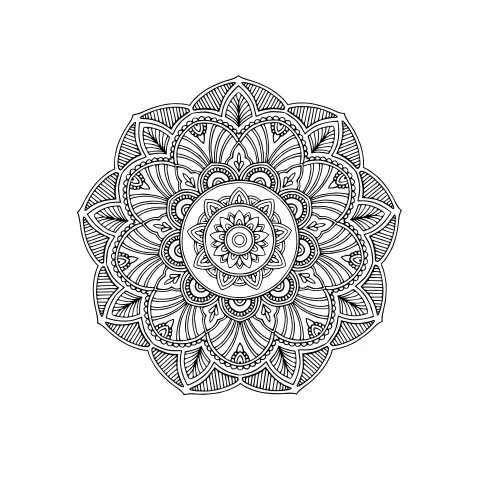
- Mandala coloring pages — 24 mandalas from easy to detailed, great for testing your paper and pencils.
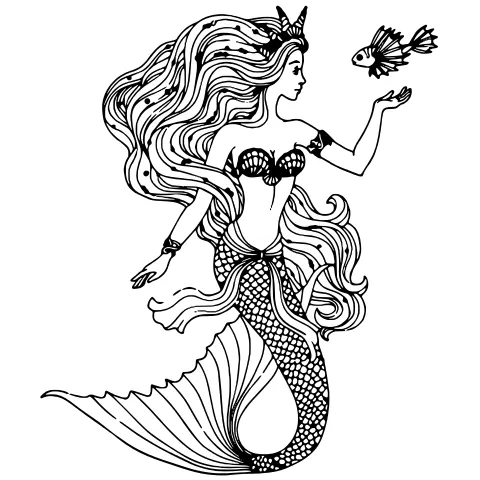
- Mermaid coloring pages — flowing hair and scales for long, relaxing sessions.
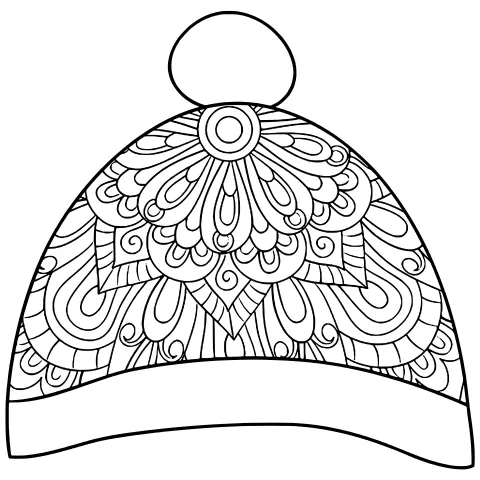
- Christmas coloring pages — angels, mittens and winter hats to print for the holidays.
Can’t find the picture you want? Create your own coloring page from a short description or a photo and download it as a PDF ready to print.
Common printing problems
- Lines are gray or faint. Set quality to High, turn off “toner save” or “draft”, and check the ink or toner level.
- The picture is cut off. Choose “Fit to page” and match the paper size to your tray.
- Lines smear when you color. You used an inkjet printer and colored too soon — let the page dry longer, or print on a laser printer.
- Markers bleed through. Switch to cardstock and put scrap paper underneath.
- Cardstock jams. Feed it through the rear or manual tray one sheet at a time and set the paper type to cardstock.
FAQ
What is the best paper to print coloring pages on? For colored pencils and crayons, regular 20–24 lb copy paper is fine. For markers or a page you want to keep, use 65–110 lb cardstock.
Where can I print coloring pages for free? Many public libraries print a few black-and-white pages free for card holders, and some schools and community centers do too. Otherwise, black-and-white printing at a library or print shop costs only a few cents per page.
How do I print a coloring sheet from my computer? Open the PDF, press Ctrl+P (or Cmd+P on a Mac), choose your printer, set the scale to “Fit to page” and the quality to High, then click Print.
Can I print coloring pages double-sided? You can for pencils and crayons on thick paper. For markers, print single-sided — they bleed through and spoil the picture on the back.
Why do my printed coloring pages look blurry? The file is probably a low-resolution image. Download the PDF version instead; vector PDFs stay sharp at any size.
Print pictures from the Color Ring app
Many of the same drawings are in the Color Ring app for iPhone and iPad, and you can print a picture straight from the app — then color it by hand with pencils or markers. This short video shows how:
On screen you can also try palettes without wasting paper and undo any stroke, then print your favorite picture and color it again on paper.